How to Use Website Headings in 4 Easy Steps (So You Can Get Found on Google)

When it comes to helping website visitors (and Google and AI bots!) to quickly understand your pages, using proper heading structure is key. Think of headings as the outline of a document. They help readers quickly understand the structure of a page and help AI models and search engines understand the page’s main topic.
Additionally, screen readers let people jump around a page by headings, so a good structure literally makes your site usable for more people. For values-driven businesses, this is a must!
In today’s post, I’ll show you step by step how to use website headings with just the most basic editing skills.
After going through this guide, you will be able to optimize your headings to actually get some visibility on your page!
If you get stuck or have questions, simply send me a message and I will do my best to help you out.
Let’s get started!
Step 1. Plan Your Website Heading Structure Around One Main Topic
Many people fail in structuring their web page headings for the simple reason that they don’t realize the structure is really important. It’s easy to think “I want this text to look bigger” and make it that way by assigning it “H1” but that actually confuses your visitor.
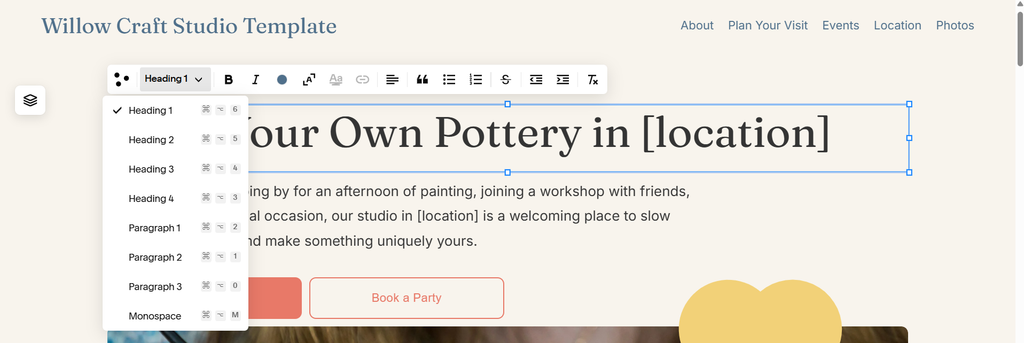
In most website builders, such as Squarespace below, you’ll click into your text, and look for a dropdown that says Paragraph / Heading 1 / Heading 2.
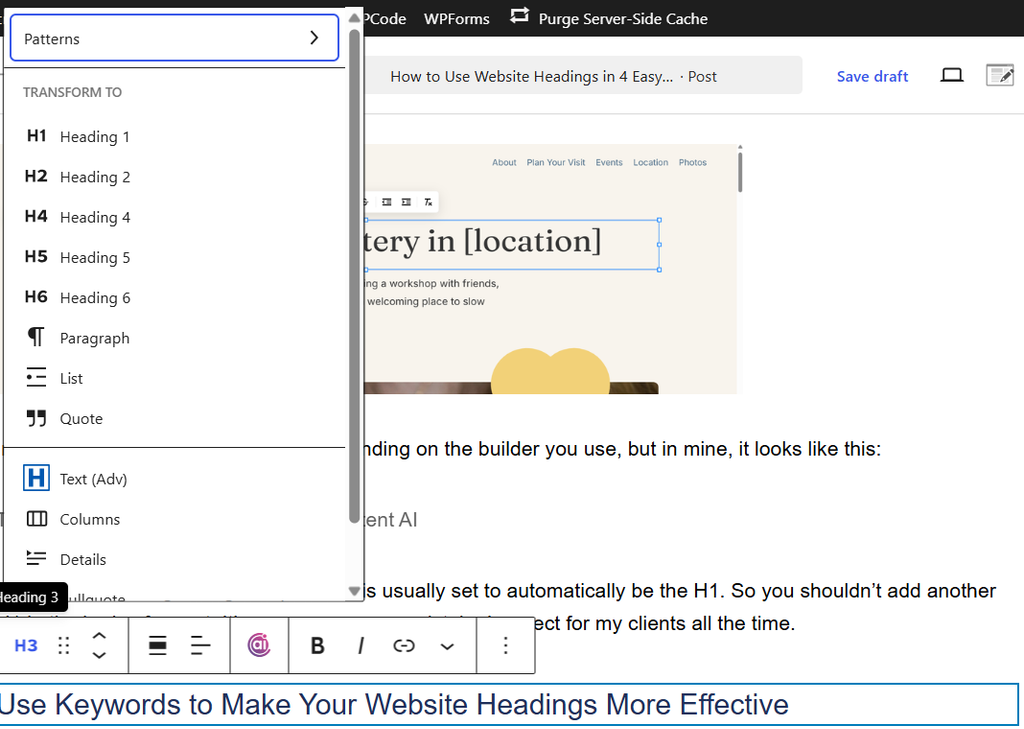
In WordPress it can look different, depending on the builder you use, In mine, it looks like this:
Use Keywords to Make Your Website Headings More Effective
To make this step go as smoothly as possible, make sure you define your priorities by applying the following tips:
- Choose your primary keyword, the main thing the page is about.
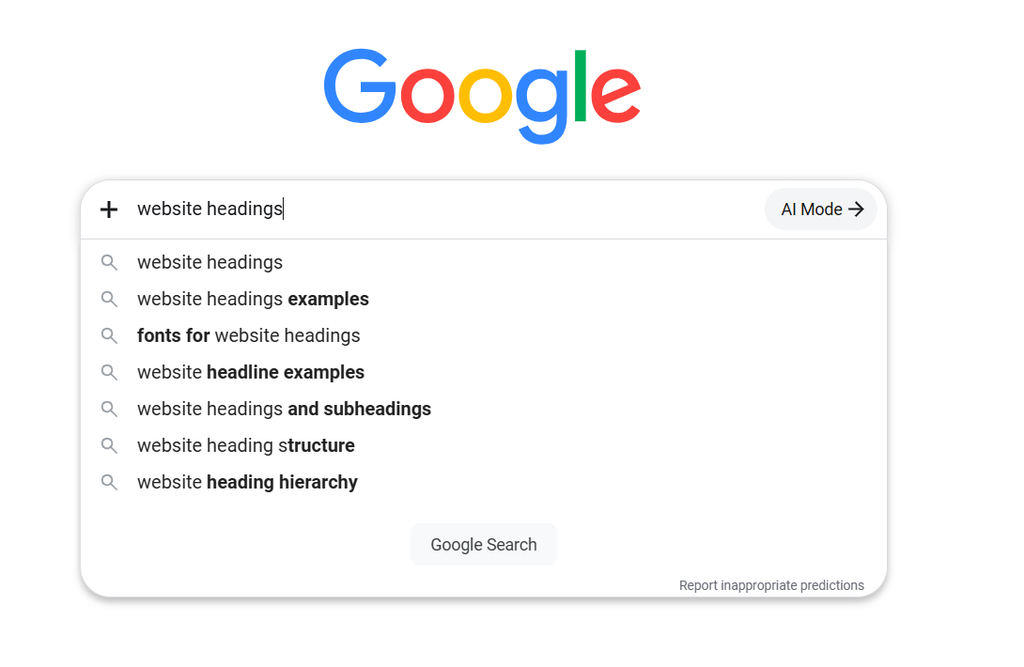
- Choose several other words that are related or similar. One way to find these is to go into a search engine and type in your primary keyword, then see what else people are asking about.
- Pick keywords the way your customer would actually say them (‘web designer near Medford,’ not ‘digital brand solutions’). Give each page its own primary keyword so your pages aren’t competing with each other.
Step 2. Use Exactly One H1 on Every Page
Another critical step to using a heading hierarchy for SEO is to use exactly one H1 per page, and make sure that includes your primary keyword. This step is important because it helps Google and AI models to very clearly understand what that page is about.
How to Check the Headings on Your Website
Using a free browser extension like HeadingsMap allows you to quickly scan the page and view all the headings. It shows the headings structure as well as any errors.
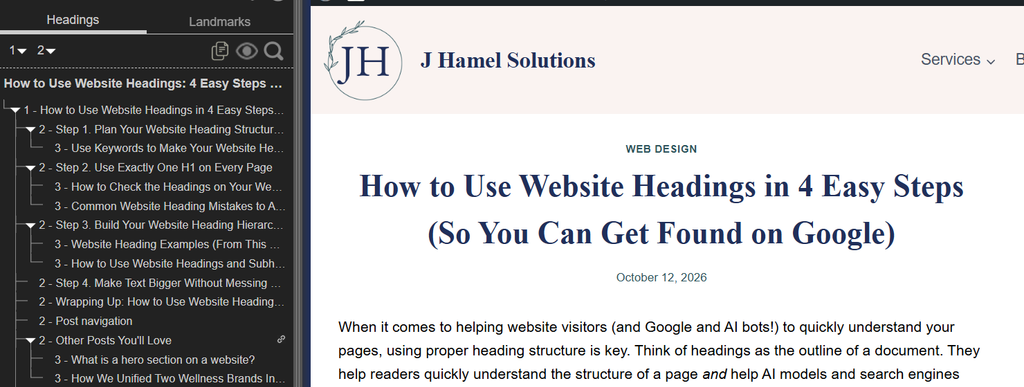
You can download it for Firefox, Microsoft Edge, or Chrome.
Common Website Heading Mistakes to Avoid
You should always be able to define the main purpose of each page so it’s easy to understand. While Google has said multiple H1s won’t get you penalized, one H1 makes it crystal clear what the page is about, for people, Google, and AI.
Here are the mistakes I see most often:
- Using more than one H1. I recently worked on a website that had an H1 title with the right keywords at the top, and then farther down the page it had “FAQs” as an H1 too. Doing this confuses the crawlers and takes away from the main point you’re trying to make.
- Adding an H1 inside a blog post. When you’re writing a blog, the post title is usually set to automatically be the H1. So you shouldn’t add another H1 in the body of the post. It’s a super common mistake I correct for my clients all the time.
- Trying to say too much on one page. If your page has multiple “equally important” parts, that’s a clear sign it’s time to split it into two pages, or to make the main point a little broader.
As with all the things we have to learn for our business, this takes a little effort and time in the beginning. But once your brain is more used to it, it becomes much smoother!
Step 3. Build Your Website Heading Hierarchy with H2s and H3s
The next step is to assign your H2 headings and use any of your keywords in there. Remember to always write first for your reader, so only include keywords where it actually is useful.
Here’s how you want to think about headings:
- Heading 1 (H1) is the title of the page. There should be exactly one H1 per page.
- Heading 2 (H2) sections divide the page into major topics.
- Heading 3 (H3) and below are used for subtopics within those sections.
Website Heading Examples (From This Post)
For example, on this article, here are the headings:
H1: How to Use Website Headings in 4 Easy Steps (So You Can Get Found on Google)
H2: Step 1. Plan Your Website Heading Structure Around One Main Topic
H3: Use Keywords to Make Your Website Headings More Effective
H2: Step 2. Use Exactly One H1 on Every Page
H3: How to Check the Headings on Your Website
H3: Common Website Heading Mistakes to Avoid
H2: Step 3. Build Your Website Heading Hierarchy with H2s and H3s
H3: Website Heading Examples (From This Post)
H3: How to Use Website Headings and Subheadings Together
H2: Step 4. Make Text Bigger Without Messing Up Your Headings
H2: Wrapping Up: How to Use Website Headings for SEO
This way, you can see that a bot or a visitor can easily scan the headings and decide whether the topic warrants further reading.
For example, I often see someone use “WELCOME” as their H1. Which is intended to be warm and inviting, but the truth is that a visitor (whether a person or AI) needs to know whether they’ve landed in the right place.
Similarly, if I’d only used “Step 1” “Step 2” as my H2 headings in this article, it would not communicate anything about the actual content topic. You’ll notice I added actionable steps that use the keywords, where appropriate.
How to Use Website Headings and Subheadings Together
As you go about your headings, you may notice that some topics/sections are long or contain multiple ideas, and need to be divided further. This is what your H3 (and even H4) subheadings are for!
Google, AI bots, and visitors use headings as clues. A clear heading structure makes it easier to understand that a page about “our team” contains information about the C-suite team, the office staff, and the volunteers, for example.
Avoid skipping levels. For example, you wouldn’t go from H2 straight to H4. It would confuse the visitor, whether they’re using a screen reader, are an AI bot, or a person just skimming text.
When adding new content to your website, choose headings based on the structure of the information, not simply because you like the size or appearance of the text.
Step 4. Make Text Bigger Without Messing Up Your Headings
Once you’ve completed your website headings, some people still have certain text that they want to emphasize by making it big. Since you’ve already set up the heading hierarchy and keyword structure, it’ll be a breeze to make it bigger with a style setting, not a heading.

It is possible to make text bigger without messing up your heading hierarchy. In Squarespace, you can use “scale text” to make the text be the size of its block:
WordPress, depending on how your back-end is set-up, sometimes has a little more flexibility. Here’s how it looks for me

Wrapping Up: How to Use Website Headings for SEO
If you make sure your pages have exactly one H1 and you’re including some keywords in your other website headings and subheadings, you’ll be well on your way to search success. Keep in mind that the steps I just shared are just one part of on-page Search Engine Optimization (SEO) and AI Optimization (AIO).
You’ll get the best results if you combine them with descriptive meta titles and descriptions, relevant alt text, and technical SEO.
Book your Website and SEO Review >>
If you ran HeadingsMap on your own site and thought “uh oh,” you’re not alone. Headings are usually just the tip of the iceberg.
In a Website and SEO Review, I’ll go through your site with you and show you what’s holding it back in search, plus what to fix first so you’re not guessing. You’ll walk away with a clear, doable plan.